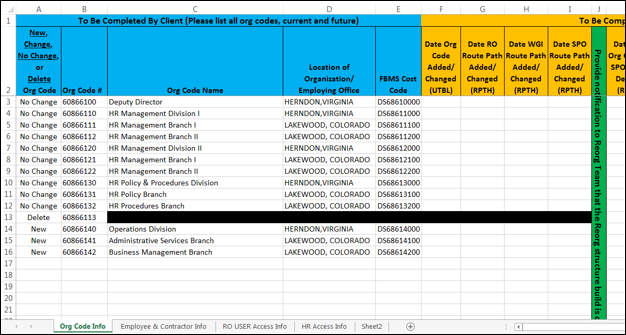
If your organization is planning a reorganization or realignment, this page shows an example of the Reorg Crosswalk spreadsheet that must be completed for the reorg package to be complete. The colors on the spreadsheet indicate who is responsible for completing that portion of the spreadsheet. The template for this document can be requested by contacting your HR Specialist.
- Blue columns are to be completed by the org/agency.
- Green columns are to be completed by the HR Servicing Team.
- Orange columns are to be completed by the HR FPPS SPOC.
On the Org Code Info Tab, you will list all org codes, both current and future, within the entire org/agency being affected by the reorganization. You will complete each column as listed below:
- Column A: Indicate whether the org code information (columns B-E) is new, will change, will not change, or will be deleted.
- Column B: List all current org codes in the organization and any new org codes being created by the reorganization.
- Column C: List the exact Org Code Name that will be printed on the SF-50.
- Column D: List the Official Office Location that will be printed on the SF-50.
- Column E: List the FBMS Cost Code that will be tied to the org code.
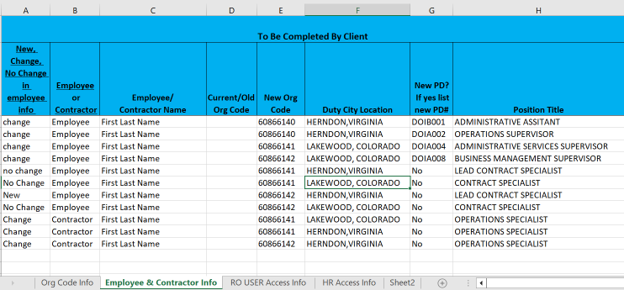
Below is a sample image of the Employee & Contractor Info Tab. On this tab, you will list all Employees and Contractors that will be impacted by the reorganization. You will complete each column as listed below:
- Column A: Identify the appropriate type of action for the employee (i.e. – change, no change, new).
- Column B: Identify if the employee listed in column B is a Federal Employee or Contractor.
- Column C: List the Employee/Contractor name.
- Column D: List the current (or what will become the old) org code that the Employee/Contractor will be moving from.
- Column E: List the org code that the Employee/Contractor will be moving to.
- Column F: List the new duty city location for the Employee/Contractor.
- Column G: If a new Position Description (PD) is being assigned to the Employee, list the new PD number. If there is no change in PD number type “No."
- Column H: List the Employee’s new position title.
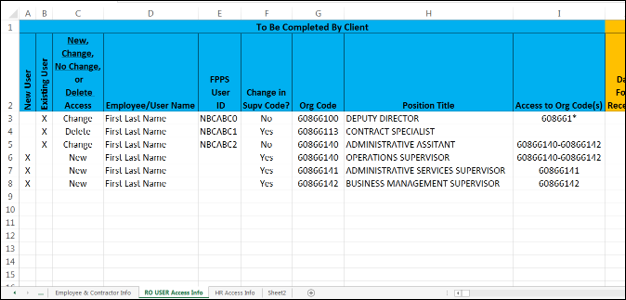
Below is a sample image of the RO User Access Info Tab. The HR FPPS SPOC will provide the agency with a list of users that currently have access to the FPPS System. With that information provided, you will complete all columns in blue and submit an IBC System Access Forms for any user requiring new or changes to their access. You will complete each column as listed below:
- Column A: Place an ‘X’ for any employees that are requesting system access for the first time.
- Column B: Place an ‘X’ for users that already have access to HR systems.
- Column C: Identify if the user’s access is new, will change, will not change or will be deleted.
NOTE: If a user is indicated as “New” or “Delete” in column C complete the IBC HR Systems Access Request Form and submit it to the HR FPPS SPOC for processing. - Column D: List the employee’s name. For current users this will be completed by the HR FPPS SPOC.
- Column E: This column will be complete by the HR FPPS SPOC for current users. For new users leave this column blank.
- Column F: Identify if there is a change in supervisor code for the employee.
- Column G: Identify the users new org code.
- Column H: Identify the users new position title.
- Column I: Identify the users new access range being requested.